







3D scan guide
Here you will find every step needed to make a 3D scan correctly.
How to make a perfect 3D scan
Do you have your own iPhone Pro or Pro Max? Then three steps are different after installing the Polycam app. Please follow these.
Please note: the screenshots show the Polycam app with a German interface. Your own app shows these labels in English. The German wording is given in brackets where it helps.
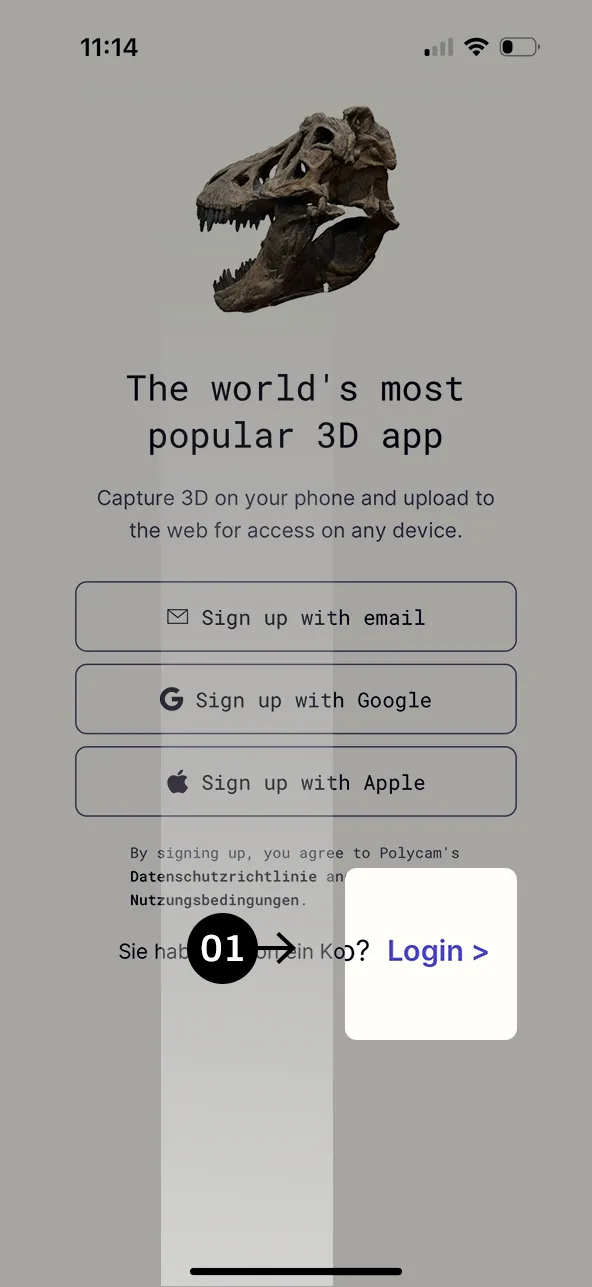
Step 1
Select “Log in” (Einloggen) next to “Already have an account?”.
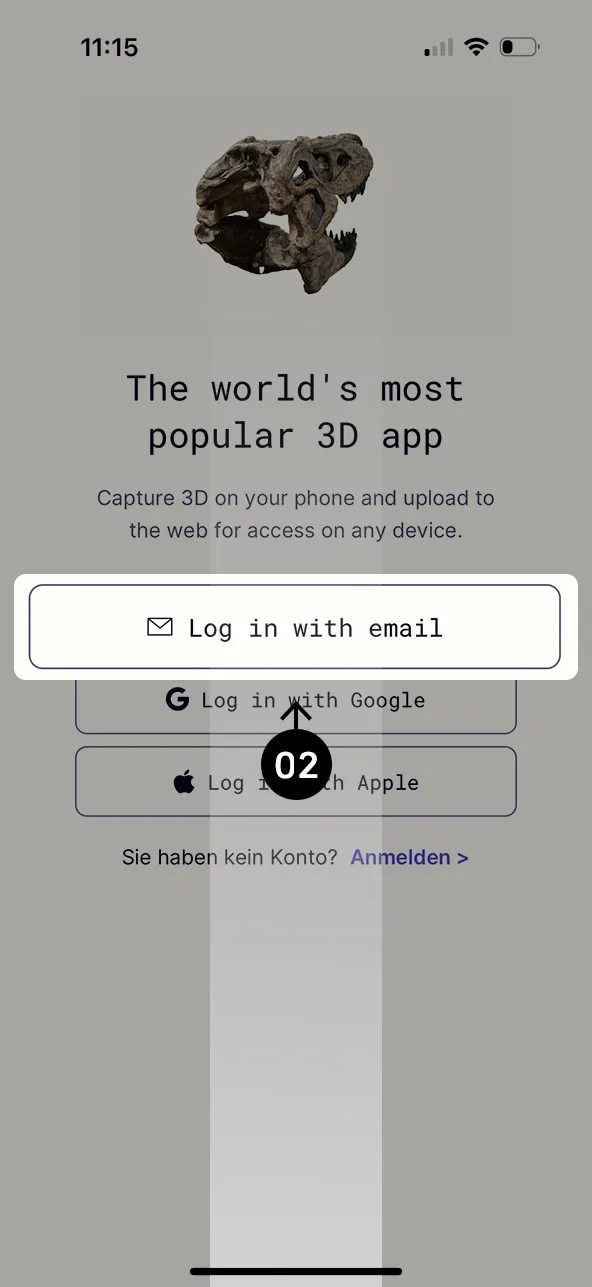
Step 2
Tap “Sign in with email” (Mit E-Mail anmelden) to log in.
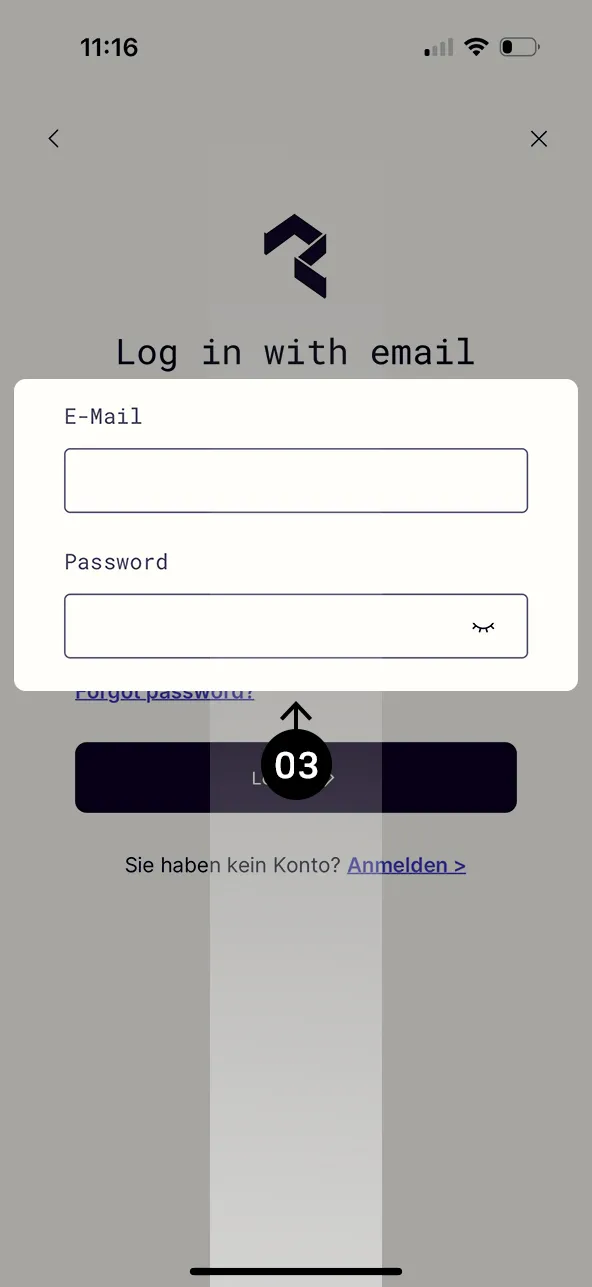
Step 3
Log in with the password and the email address from our email.
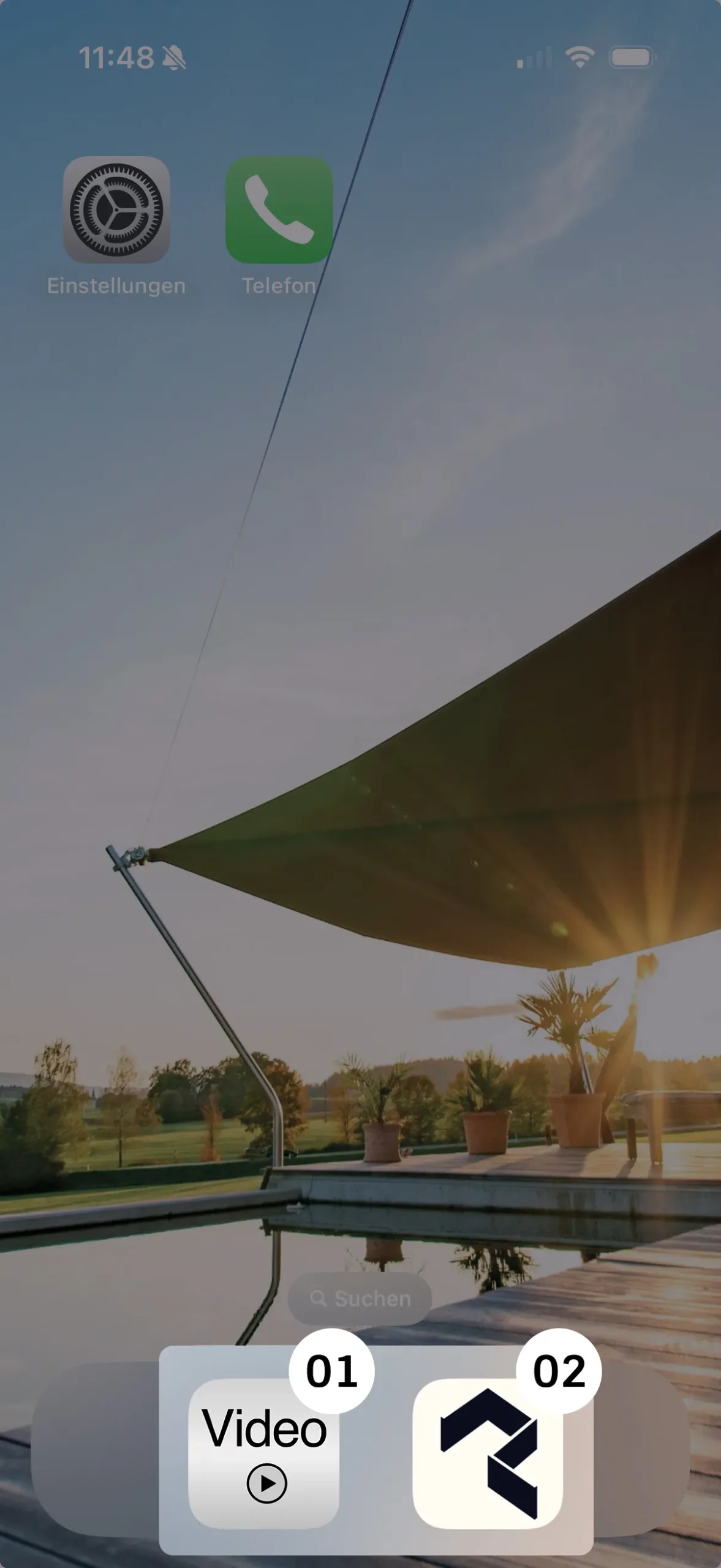
Steps 1 & 2
These steps only apply if LET has sent you a phone. If you are using your own phone for the scan, start at step 3.
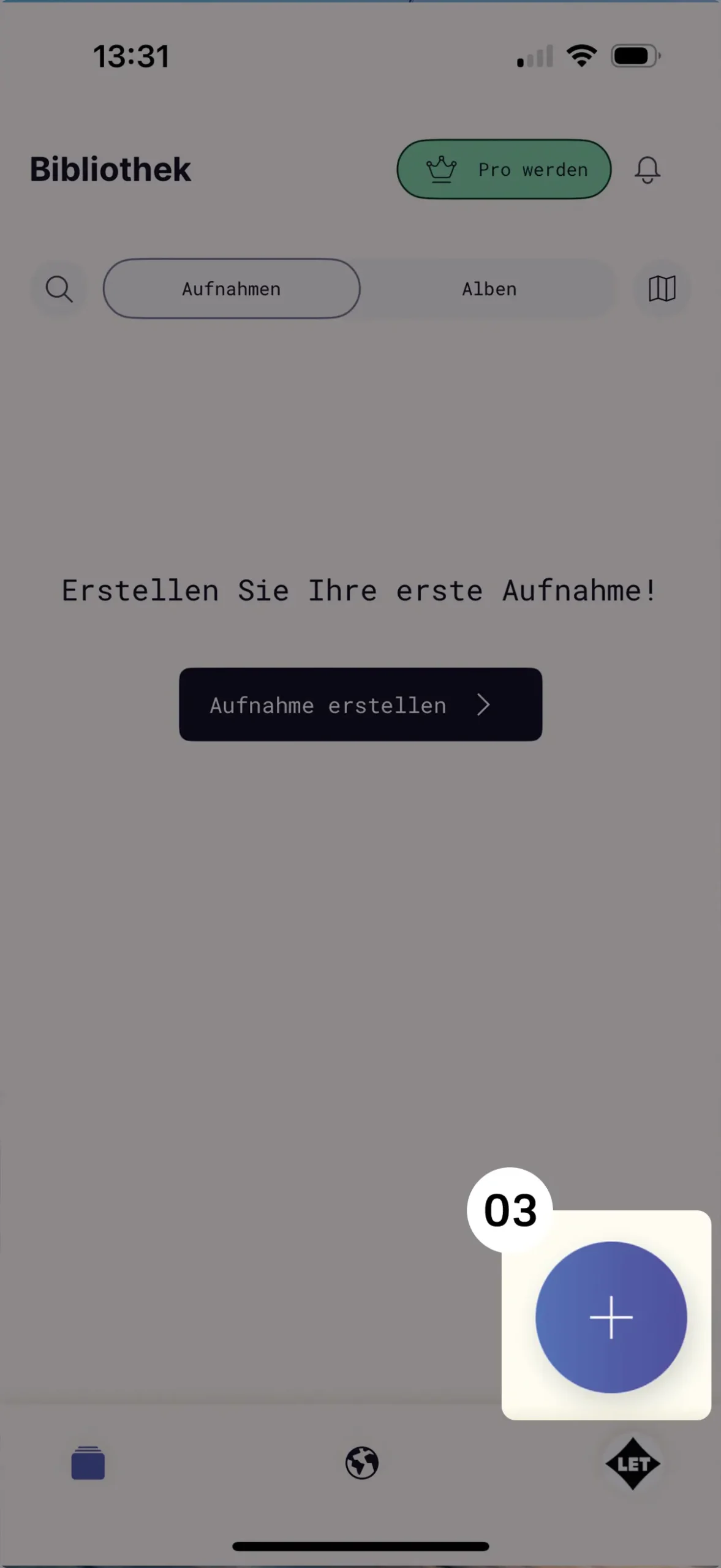
Step 3
Tap the blue plus symbol to add a scan.
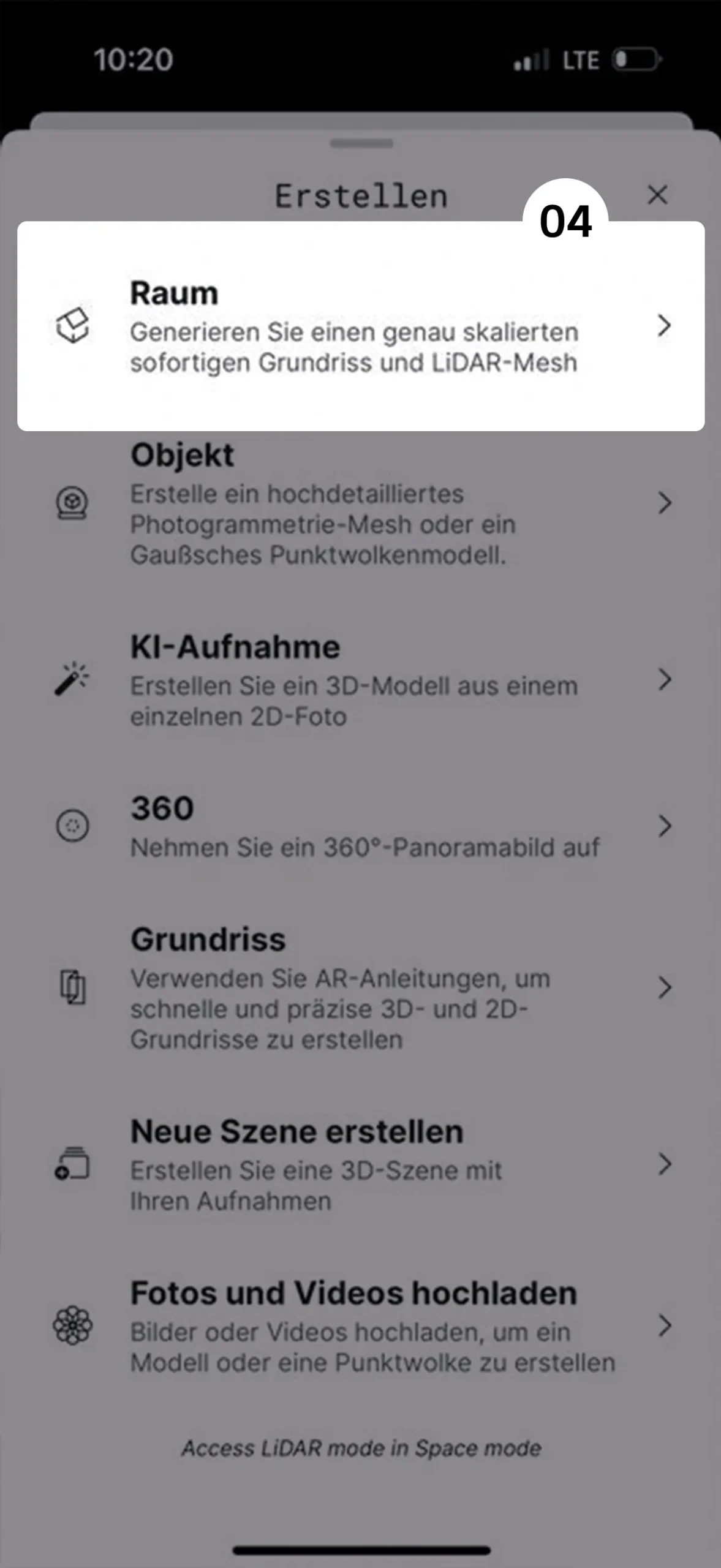
Step 4
Now select “Room” (Raum) to start a scan.
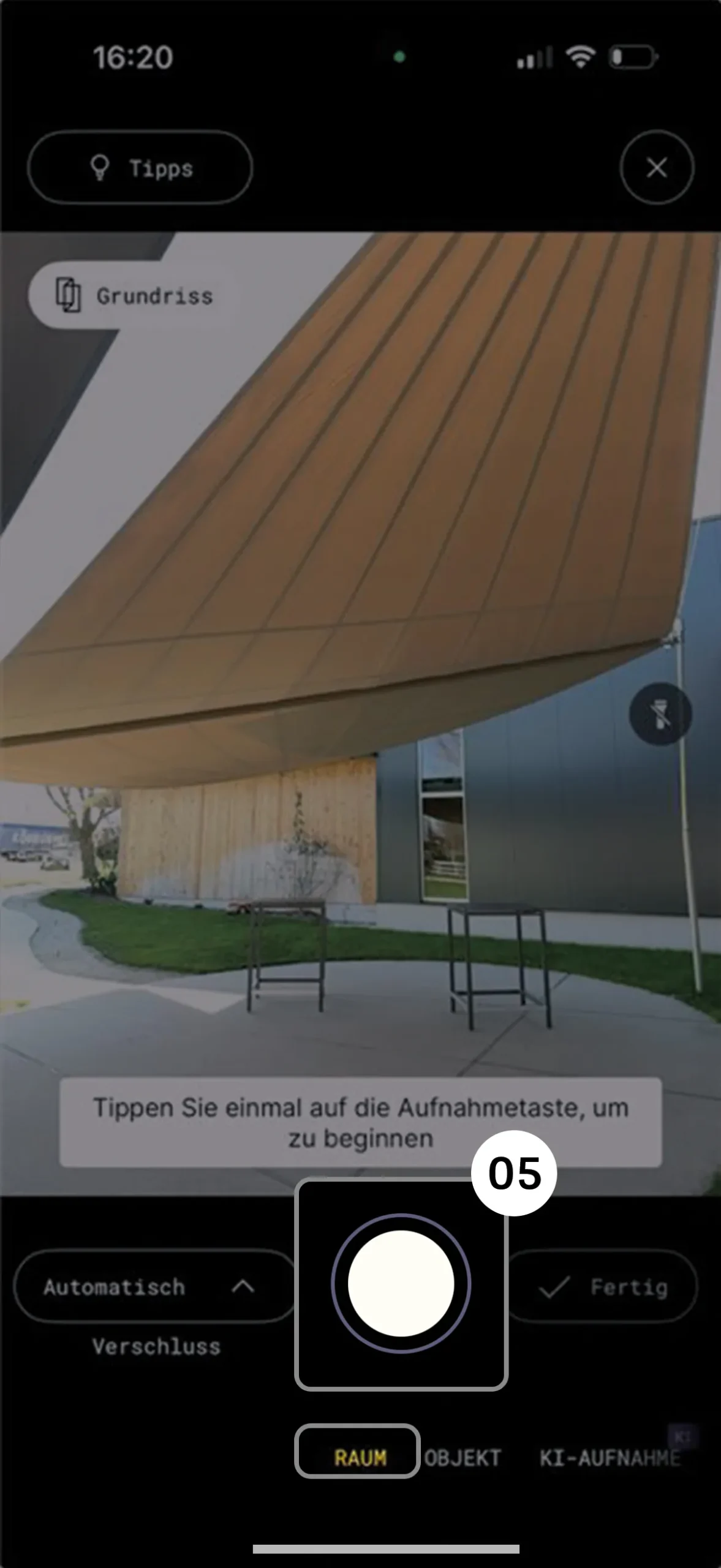
Step 5
Now press the large record button to capture a scan.
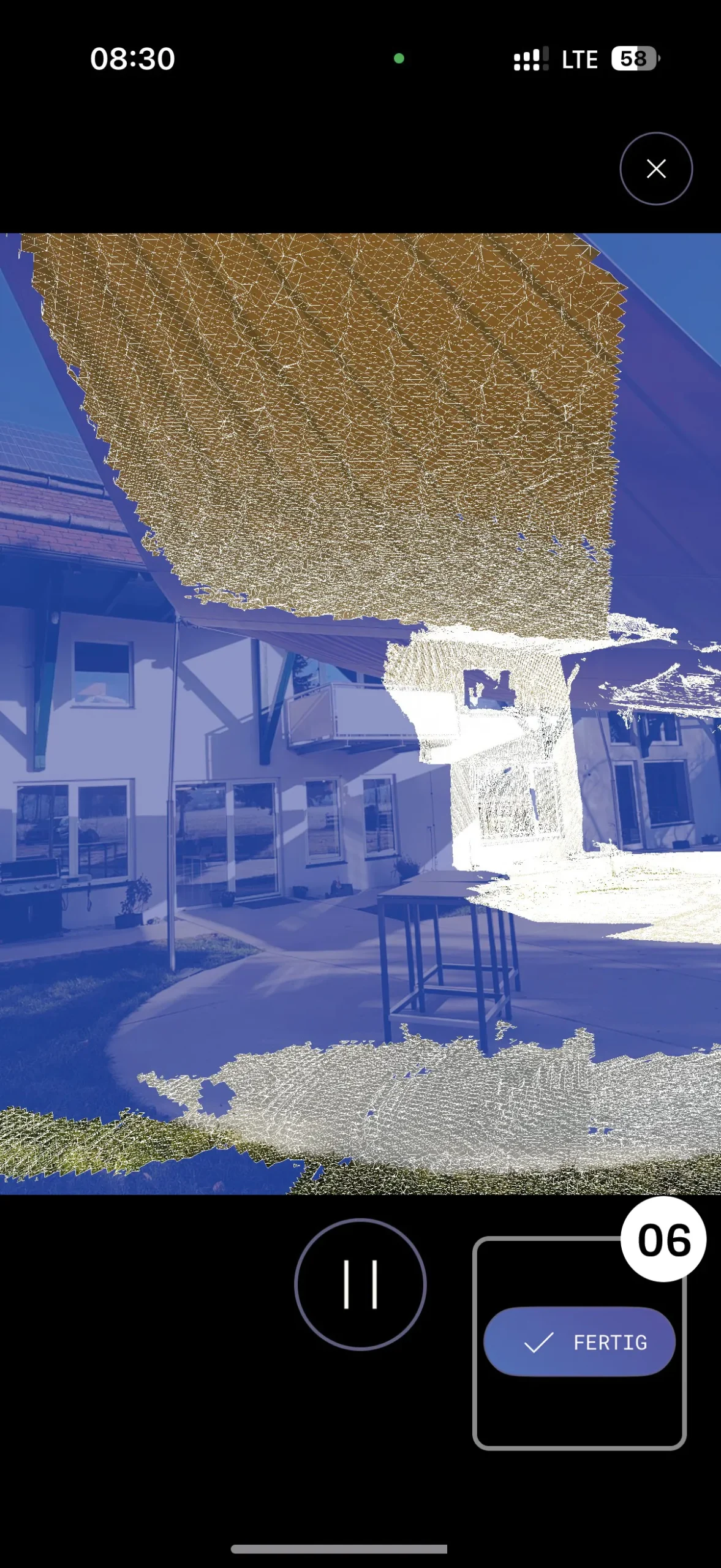
Step 6
Once you have finished scanning, tap “Done” (Fertig).
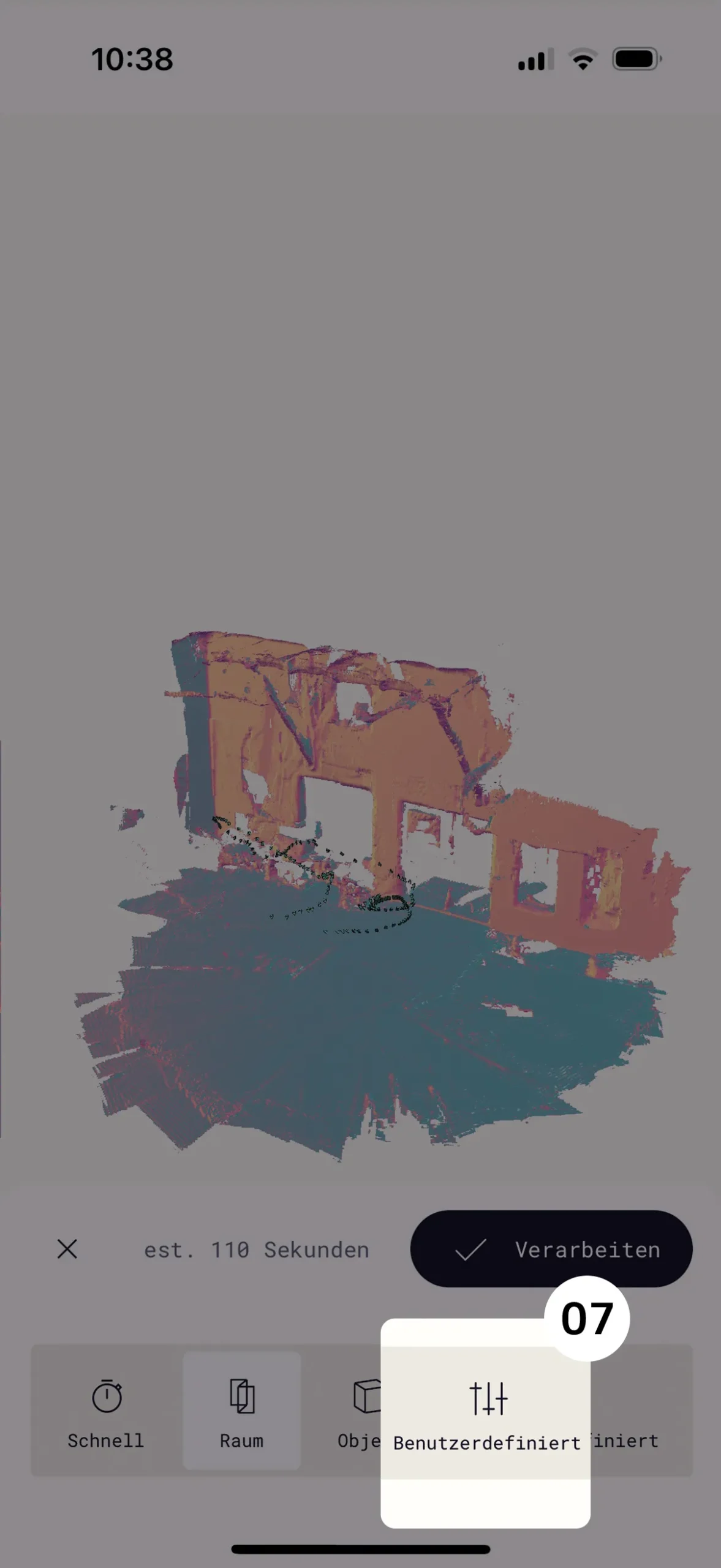
Step 7
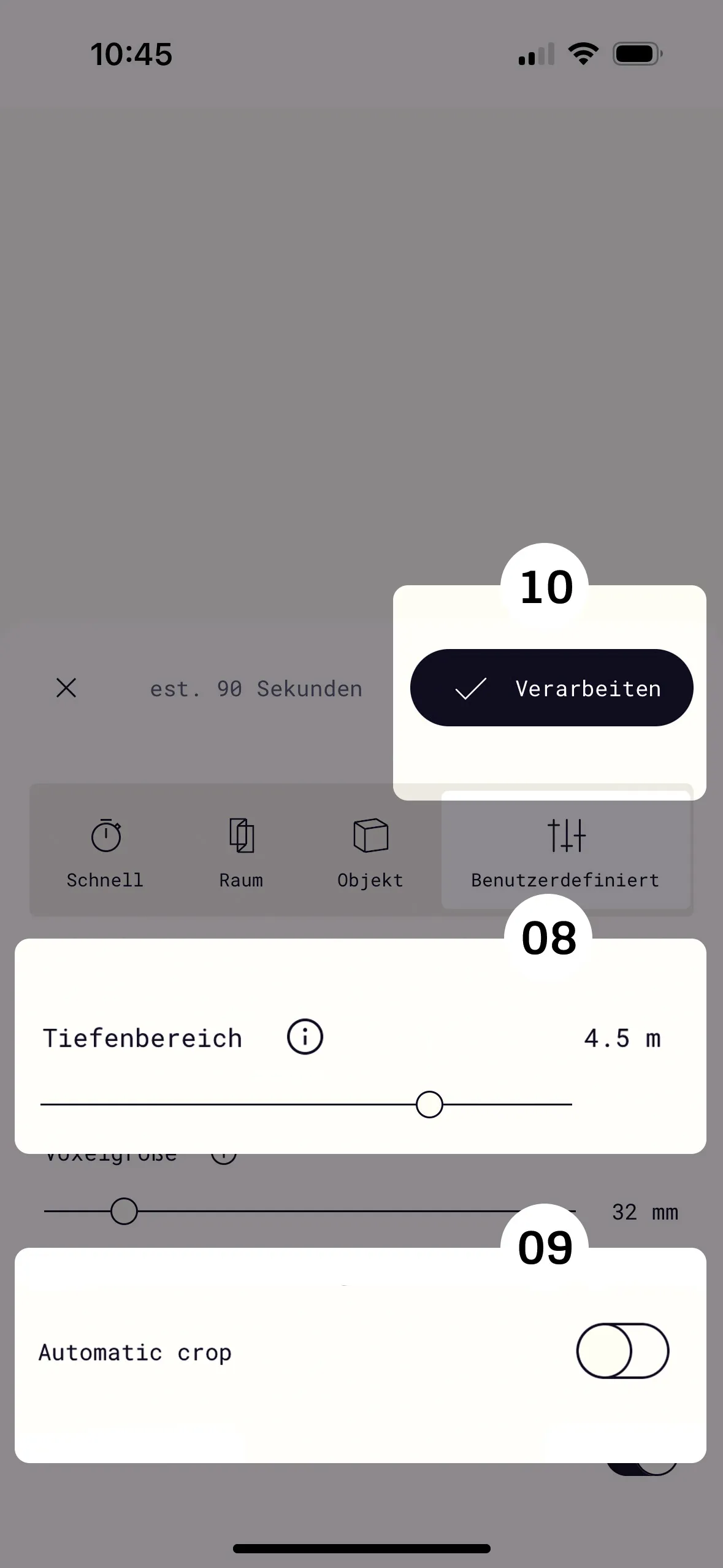
For a higher-quality upload, select “Custom” (Benutzerdefiniert).
Steps 8–10
Set “Depth range” (Tiefenbereich) to 4.5, switch “Automatic Crop” off, then tap “Process” (Verarbeiten).
Step 11
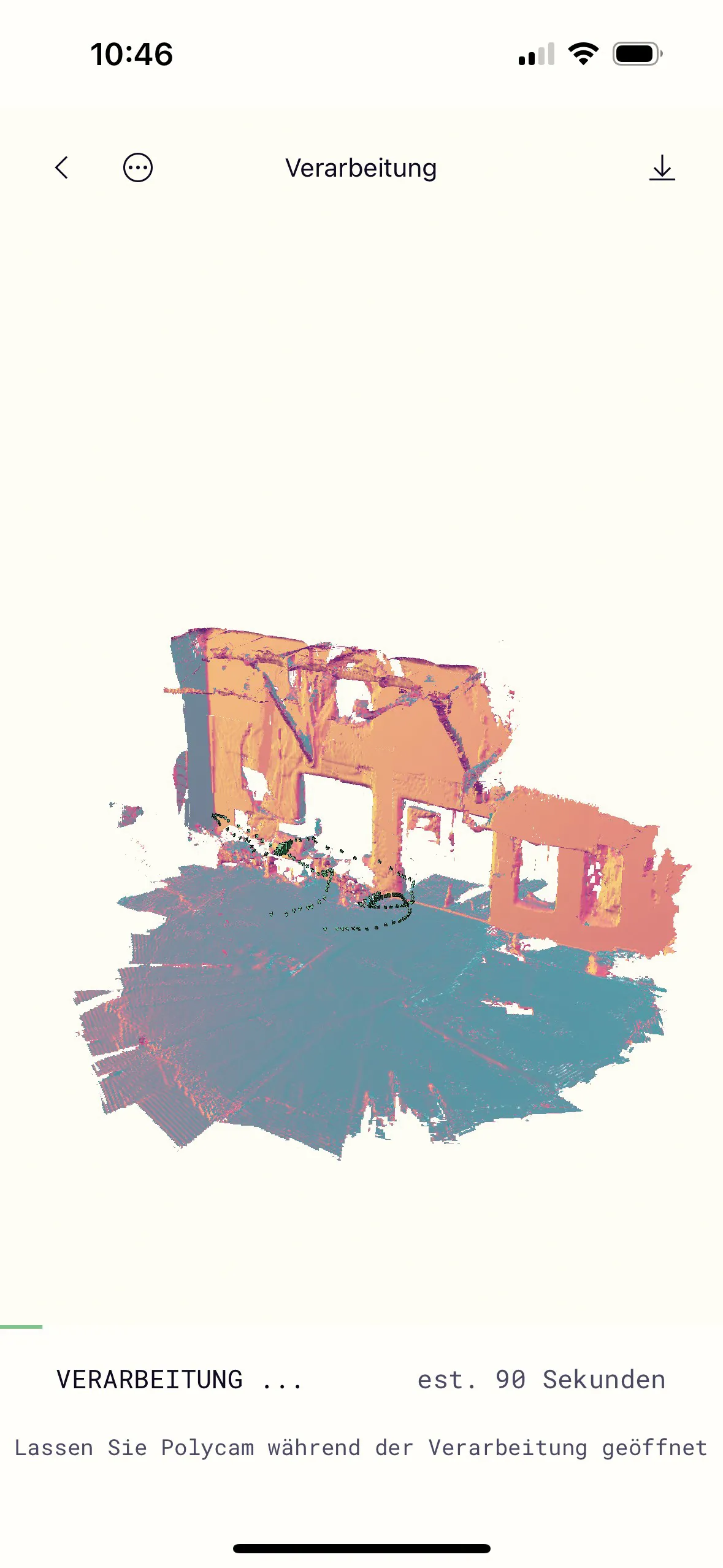
The scan is now being finalised, which takes a moment. The waiting time varies with the size of the scan.
Step 12
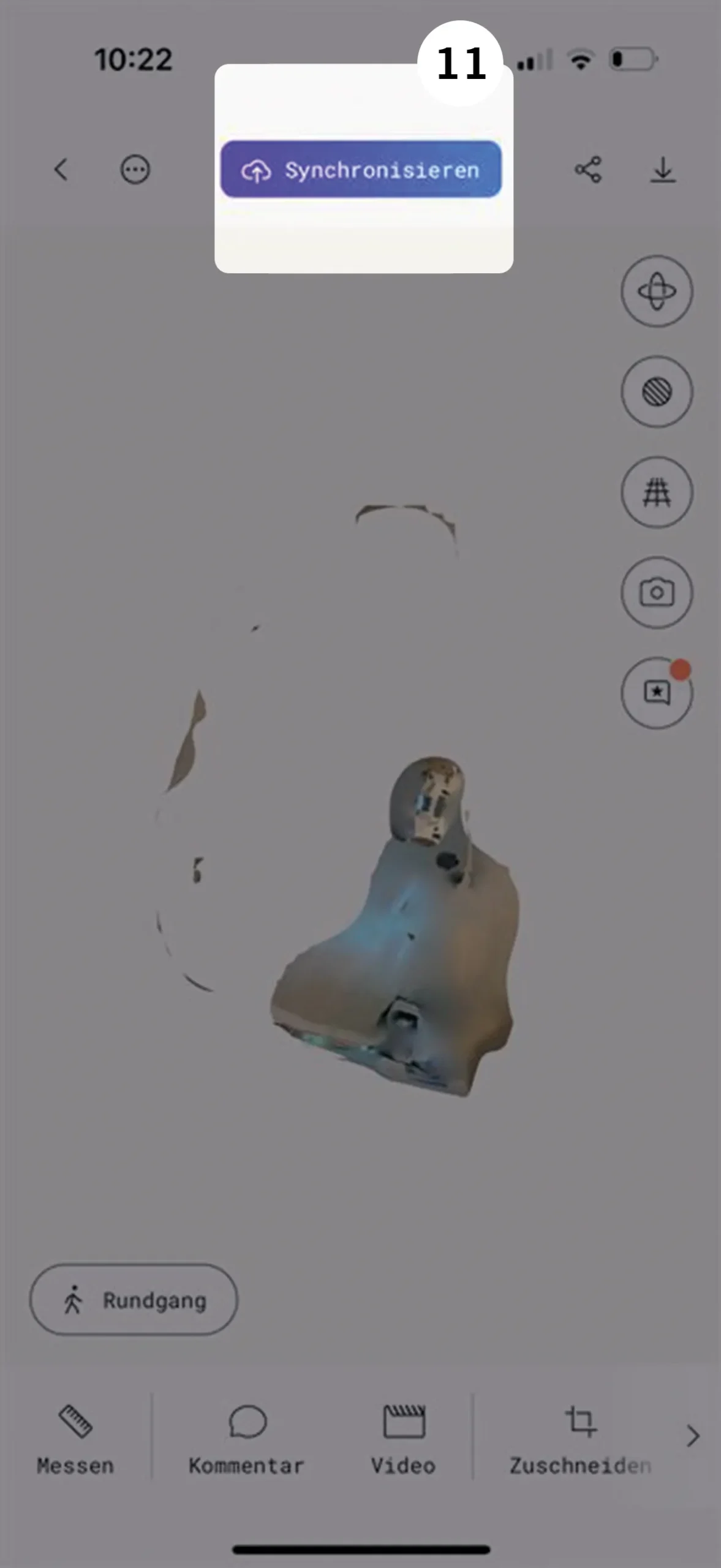
Once the scan is finished, the “Sync” button (Synchronisieren) appears – use it to upload the scan. The waiting time varies with your internet connection.
Step 13 – DONE
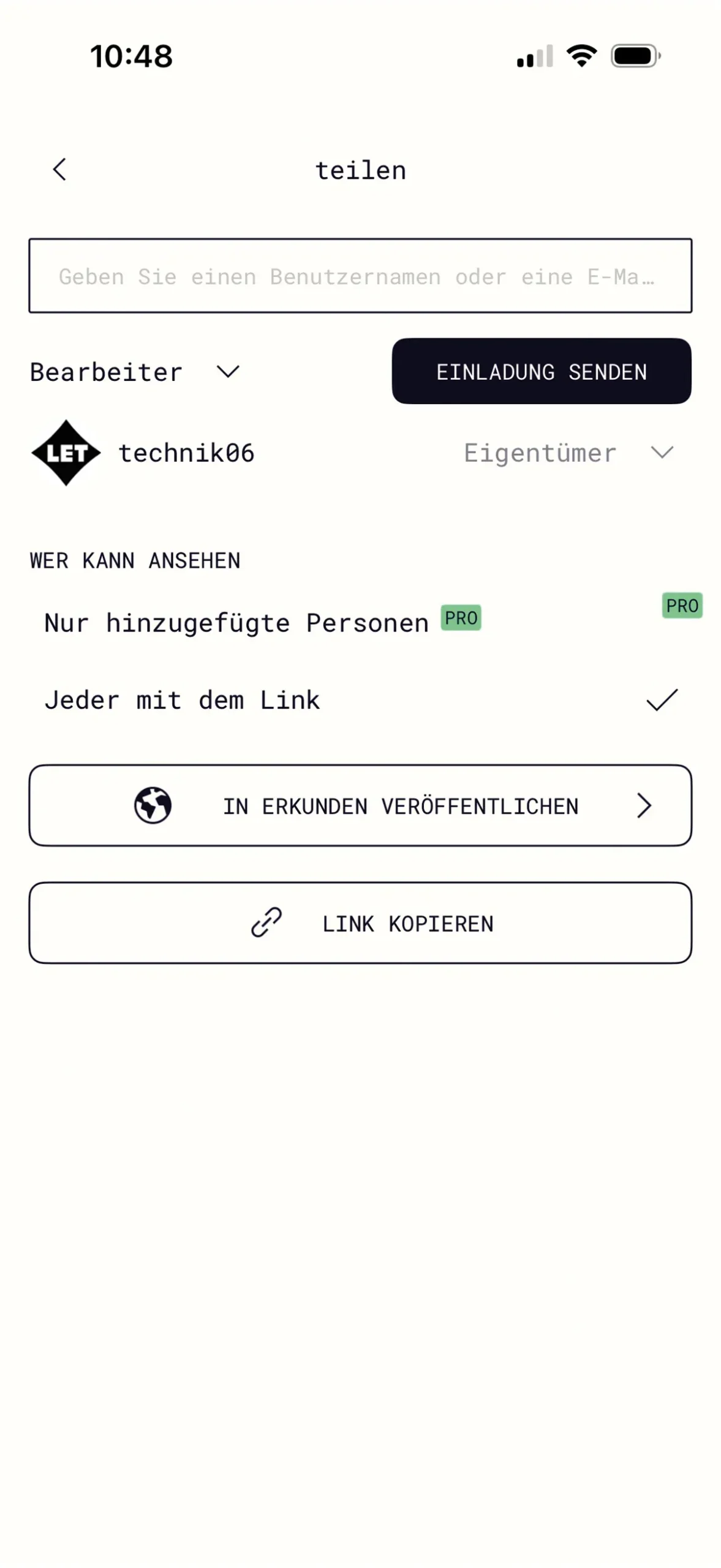
If you have reached this screen, everything has worked. There is nothing else for you to do. If we need anything further from you, we will be in touch.
Need help or have a question?
Do you need help or have questions? Contact your sun sail adviser directly. Or send us an enquiry. They will help you quickly.
Frequently asked questions (FAQ)
Thank you for choosing a sun sail from LET. Here you will find key information and instructions for the 3D scan.
It is important not to stay in one spot. Move slowly across the whole area while scanning.
The upload needs an internet connection. Please check your connection.
Concentrate on clear surfaces such as walls and the ground for the best scan results.
The best time to scan is in fine weather. Avoid fog, darkness, rain or dusk for optimum results.